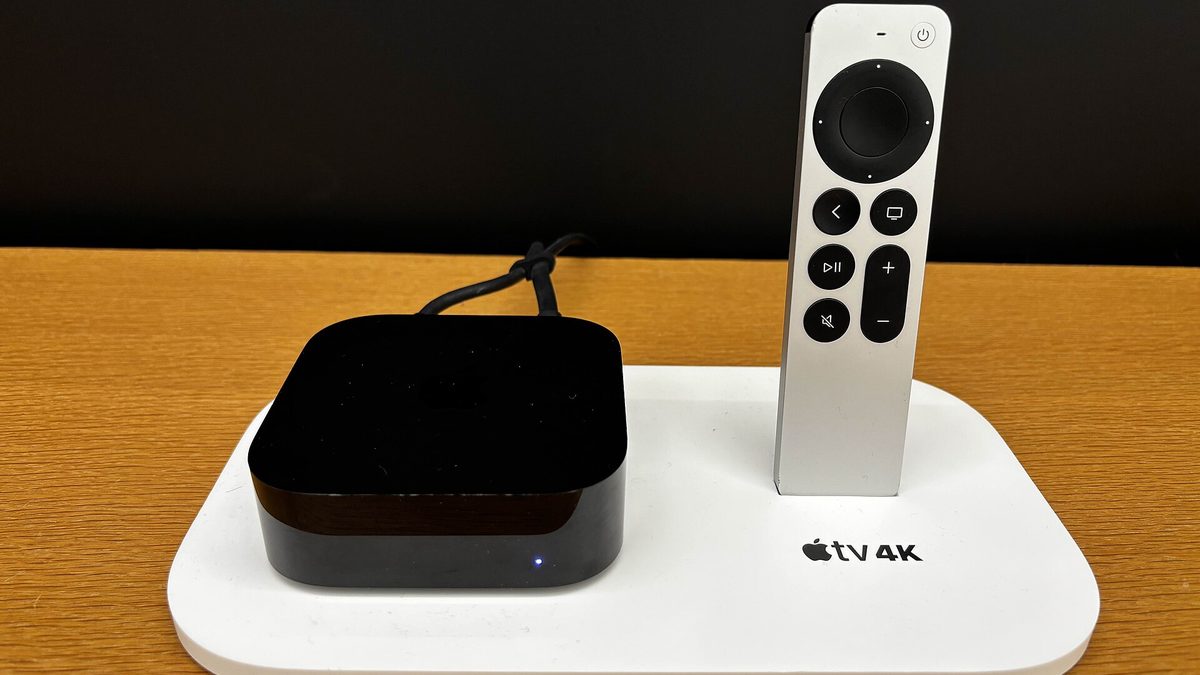
A Matter device can belong to several controllers at once, each as its own fabric. The setup code printed on the device is for the first one only: to add another, an app that already controls the device generates a new pairing code, valid for a few minutes. Home Assistant can share without pressing the device's button, but adding to it needs the Companion app.
- The printed code is single-use. After the first controller, codes come from an app that already controls the device.
- Shared codes expire in minutes, from about three in Google Home to fifteen in Alexa or SmartThings.
- Home Assistant needs its phone app to add Matter devices; the browser cannot do it.
- Fabrics are finite. How many controllers a device accepts depends on the device itself.
One device, several controllers
Home Assistant's documentation calls it the Multi Fabric feature: “you can join the same device to multiple controllers.” Each controller, whether Apple Home, Google Home, Alexa, SmartThings or Home Assistant, builds its own Matter network, called a fabric, and the device holds a separate identity in each.
The practical consequence is the part that trips people up. The QR code or number printed on the device commissions it into the first fabric. For every fabric after that, an existing controller has to ask the device to open its commissioning window again, which is what the “share” or “pairing mode” button in each app does.
If the second app rejects the printed code, the device is not broken. That code has done its job. Generate a new one from the app that already controls the device.
Where each app hides the pairing code
Menu names and expiry times below come from TP-Link's multi-controller guide and Home Assistant's documentation. Menus move between app versions, so treat the paths as directions rather than exact labels.
| App | Where to find it | Code valid for |
|---|---|---|
| Apple Home | Device settings, Turn On Pairing Mode, Copy Code | 5 minutes |
| Google Home | Device settings, Linked Matter apps & services, Link apps & services | 3 minutes, keep the page open |
| Amazon Alexa | Device settings, Other Assistants and Apps, Add Another | 15 minutes |
| SmartThings | Device settings, Share with other services, Share | 15 minutes, keep the page open |
| Home Assistant | Settings, Connectivity, Matter, Devices, Share device | No button press on the device needed |
Two details matter more than the menus. Google Home and SmartThings both say to keep the code page open while the other app uses it. And the clock is short: have the receiving app open and ready before you generate the code.
Bringing a device into Home Assistant
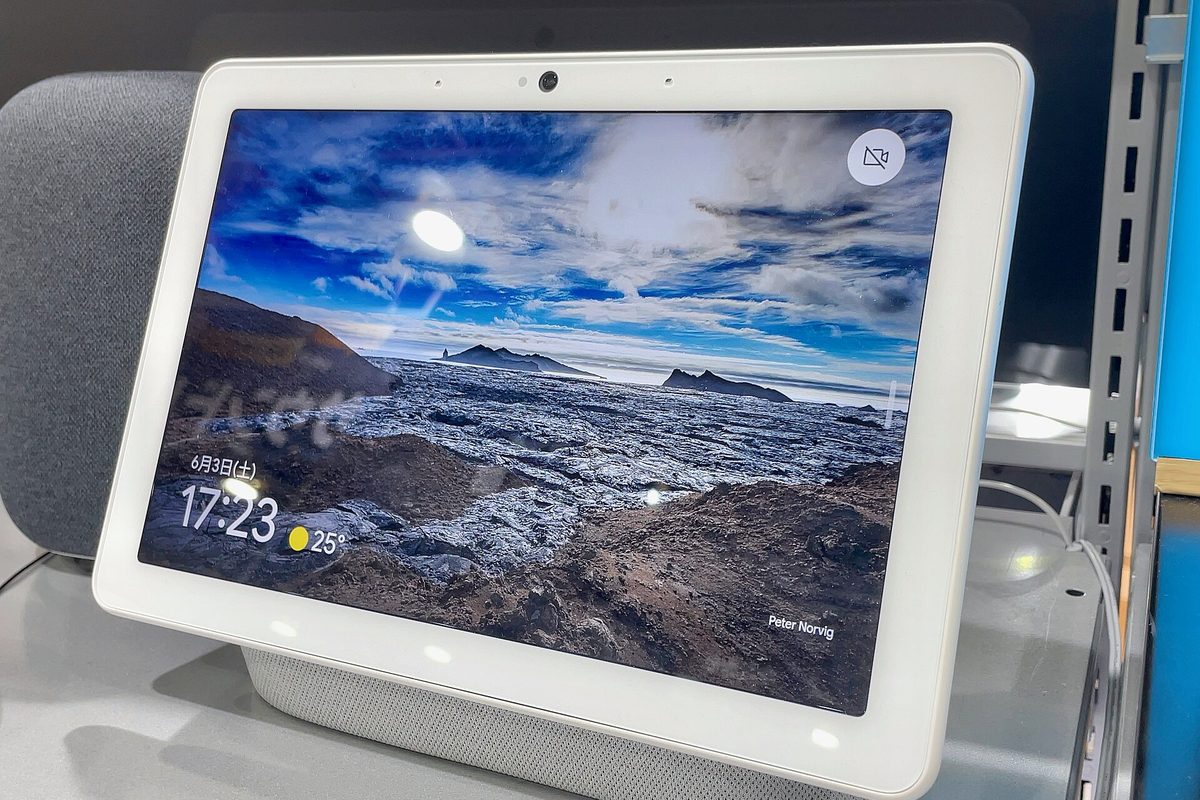
Adding a device that already lives in Apple or Google Home is done from the Home Assistant Companion app, not from the browser: the documentation states that adding Matter devices “is not available in the browser.” In the app, go to Settings, Connectivity, Matter, choose Add device, then answer that the device is already in use and say which controller holds it.
Going the other way is simpler. From the device's page in Home Assistant, Share device produces a QR code or a code for the other app to scan, and there is no need to press a button on the device to put it into commissioning mode.
Apple's support page notes that a Matter accessory already paired to another app can be added from Add Accessory, then More options, rather than by scanning a code.
When the next controller refuses
- The code expired. Three minutes goes quickly. Generate a new one with the receiving app already open.
- The sharing page was closed. In Google Home and SmartThings, leaving the page can end the session.
- The device is full. Espressif's developer notes point out that a device's resources decide how many fabrics it can hold. Remove a controller you no longer use, then try again.
- It is a Thread device and the new controller cannot reach the Thread network. Home Assistant's documentation requires a border router nearby and Thread credentials synced to the phone; our Thread guide covers the failures that follow when either is missing.
Sources
- Home Assistant Matter integration: sharing and adding devices
- TP-Link: adding a Matter device to multiple controllers
- Apple Support: Matter accessories in the Home app
- Espressif: Matter multi-admin, identifiers and fabrics
Checked on 7 October 2026. App menus and expiry times change between versions; the sources above are the ones to recheck.
Frequently asked
Can I use the setup code on the box for a second app?
No. The printed code is for the first commissioning. Later controllers need a new code generated by an app that already controls the device.
How long does a sharing code last?
It depends on the app: about 3 minutes in Google Home, 5 in Apple Home and 15 in Alexa or SmartThings, according to TP-Link's guide.
Can I add a Matter device to Home Assistant from the browser?
No. Home Assistant's documentation says adding Matter devices needs the Companion app on your phone.
Is there a limit to how many apps can share one device?
Yes. Each controller uses a fabric on the device, and how many fabrics a device can hold depends on its resources.
Keep reading
 Pairing
"Your device requires a Thread border router": the real fix
The error almost never means what it says. Nine times out of ten the border router exists and IPv6 is the thing that is broken.
 Radio
RadioZigbee and Wi-Fi on 2.4 GHz: pick the channel that stops the drops
Zigbee 15, 20 and 25 exist for a reason. Here is the overlap map and how to move channel without re-pairing forty devices.
 Longevity
The great bricking: how to buy gear that outlives its manufacturer
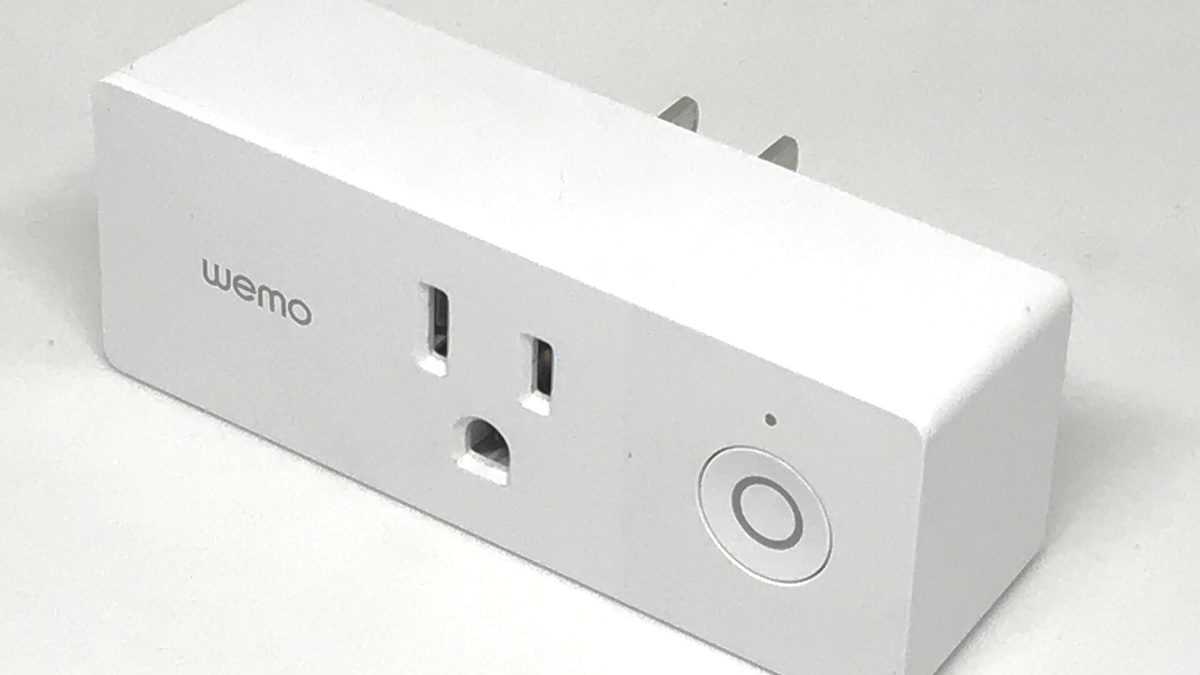
Wemo's cloud went dark in January 2026. Here is the four-question test we now run before any purchase.